Showing posts with label jpg. Show all posts

Wednesday, July 16, 2014

wget A Super Duper Image Scooper !

I love downloading images on the internet! Cars, pin up girls, scenery and of course I've downloaded my fair share of stupid human tricks and fail pix.

Occasionally you come across a page of content and you just don't feel like clicking on each image or video individually. The other day I came across a site of hot rods with over a thousand images. That's a lot of clicks ! Who has time for that. Here's what you do.

wget to the rescue !


 You may have used wget to download stuff from the internet. A simple file grab with wget would look like this :

wget http://www.websiteName.com/filename.mp3

If you've never used wget before to download a file, search the internet for a file to download, open up a terminal, type wget and paste the download link after it like in the example above.

I don't know why but for some reason when I download something from the command line using wget it seems to download so much faster than downloading it in Firefox or using a browser. So I often cut and paste download links from the internet and download with wget from the command line. Ahright, I digress ! Assuming you understand the very basics of wget, here's how we would use it to grab images from a webpage.

Note: Use man wget to learn more about this command. This is the very basics and just something I've been experimenting with. 

The Command


wget -r --level=2 -v -A jpeg,jpg --wait=2 http://www.targetDomain.com/webpage.htm

The above is all one line of code. So what do we have here and why does it work?

wget (command line utility used to download files)

-r (this is recursive, and will continue scanning directories to find the images or videos)

--level=2 (this will only allow it to scan 2 levels of directories, the higher the number the more directories it will download.)

(if you wanted to download an entire website of files you could omit the --level=2 NOT RECOMMENDED, but you could if you want)

-v  (this is verbose, and will show you whats happening as it downloads, again this is optional)

-A jpeg,jpg (this creates the accept list in this example jpeg, jpg,. You could just as easily change jpg to gif, flv, mp3, mp4 etc, etc, or change it up a bit and download jpg, and mp4. That would download images and video. You can add as many file types as you want here separated by comma.You get the point ! )

--wait=2 (this is really important, this gives you a 2 second wait before each downloaded file. This command will download files so fast, that you really want to add this to help decrease server load. If you were to download an entire site, leaving out --level you should probably increase this number to around 5 to 10 seconds. You don't want to DDoS the server.

Finally ...


http://www.targetDomain.com/webpage.htm  (the web page or website you want to download. Again I would refrain from downloading entire websites, as this can really strain the server your downloading from.)

So there you have it. This is the very basics, and you could really get more detailed in creating a Super Duper Image and Video Scooper command.  As always to learn all the command options type man wget to learn more about this powerful tool/command ! Once you create a really great command , create a script for it and then you could just run the script and add the web address for instant downloading fun.

Enjoy !

Here's a link to the ftp: man page on wget.


Thursday, January 30, 2014

Software Review Posterazor For Printing Posters

Here's a quick, easy way to print out posters from your computer. Posterazor is the perfect software solution for poster printing. If you've used The Rasterbator online, this is pretty similar but you don't have to be online to use it. Now you can print out great looking posters from home, the office or anywhere you don't have an internet connection.

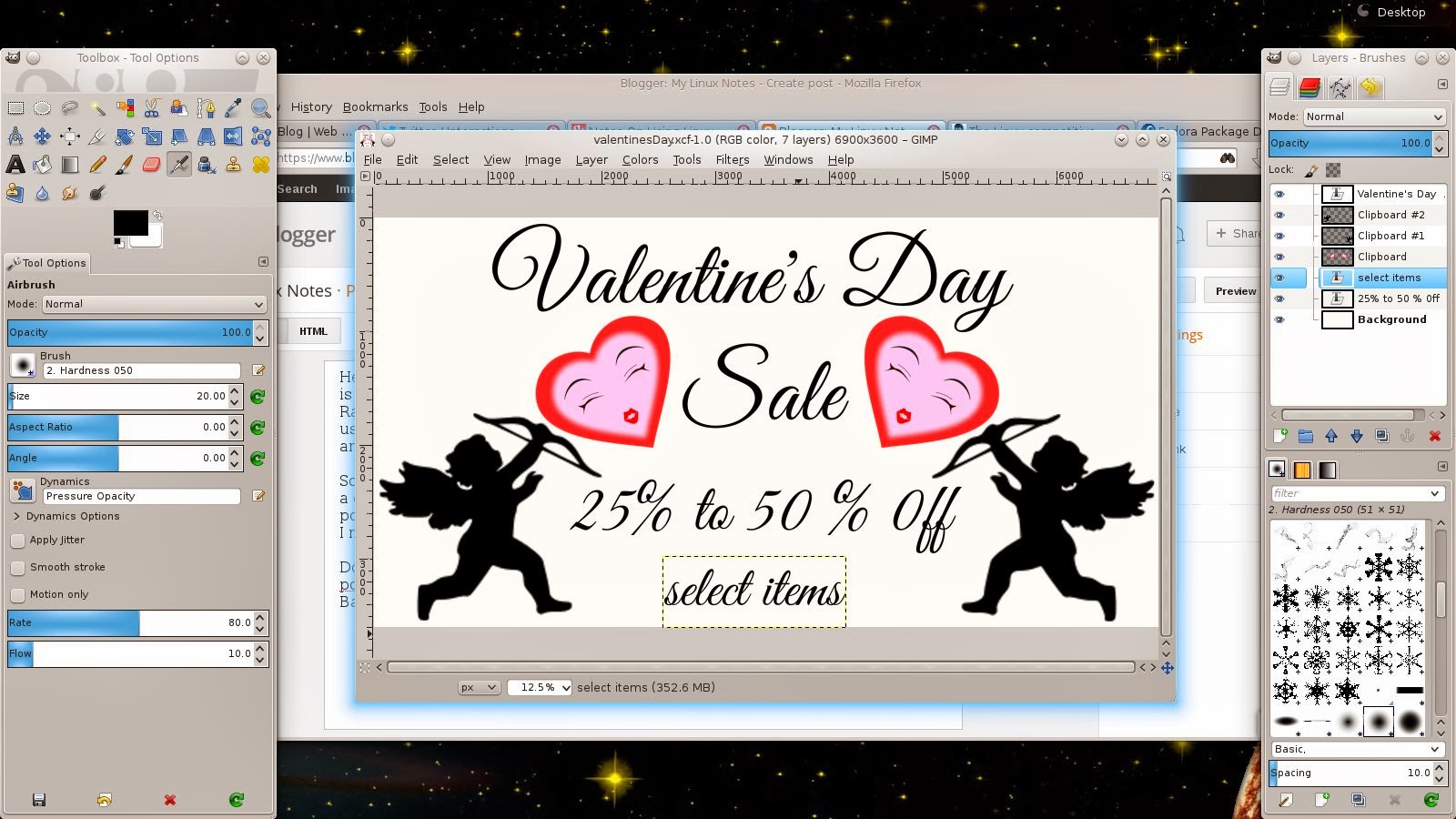
So I use this personally for promo posters for my business. I have printed out a couple decorative poster art type projects, but my main use is for window posters to promote sale items. This program lets you print out an image over multiple pages of paper so you can tape or collage them together to make one large poster. Here's an example of a Valentine's Day poster I made for a friend.
Valentine's Day sale poster made with some clipart, and 4 pages of paper.

I use Fedora so I did  a yum search and I found it available in the repositories. yum install posterazor and yum did the rest. Using the program is pretty simple as well. Basically for my project I created a 6900 x 3600 pixel file in Gimp 2.8. Chose my font, added some clipart and exported the file as a jpg image.

Designed in Gimp 2.8 at 6900 x 3600 pixels and exported as jpg.
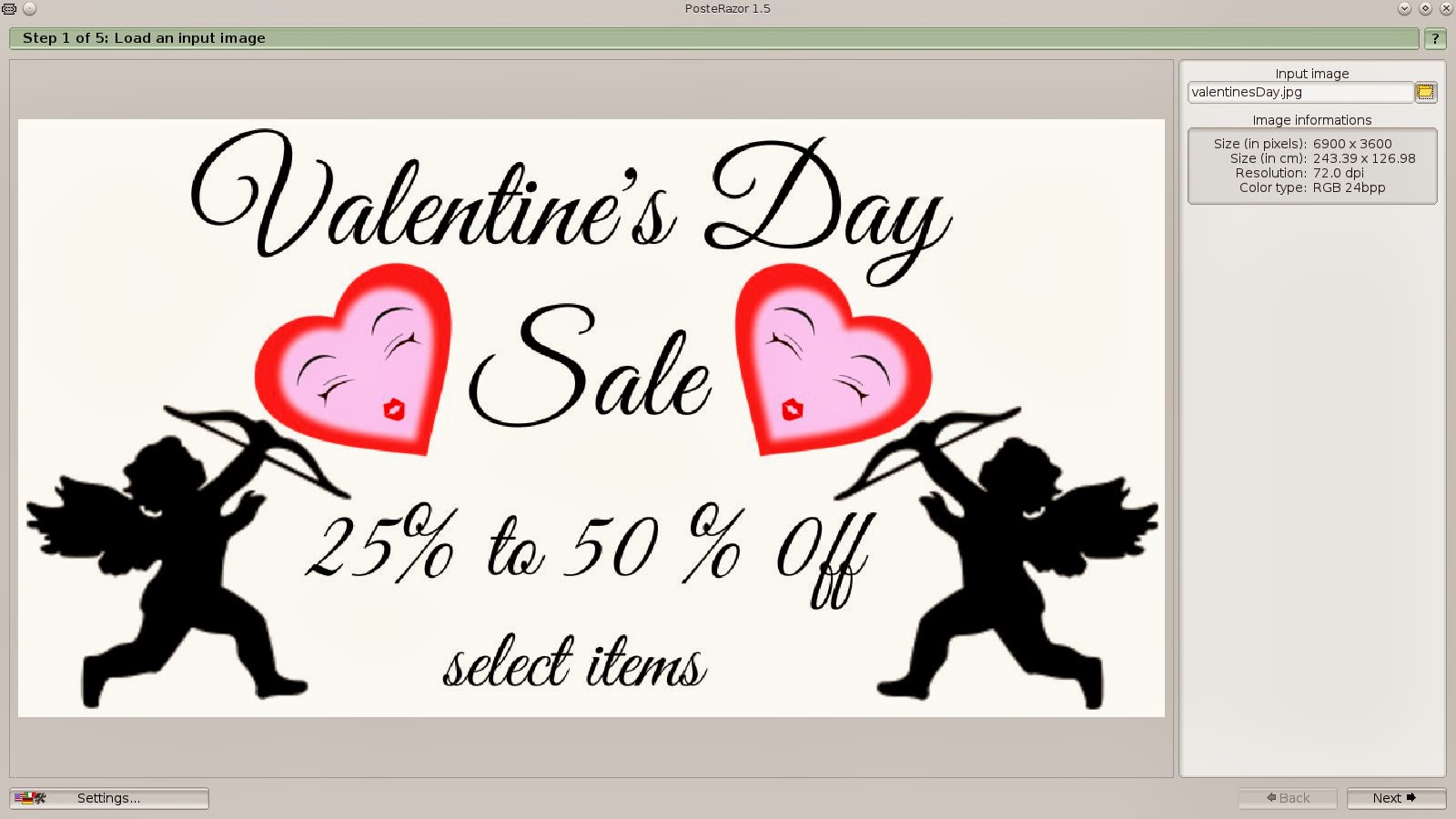
 Next you open Posterazor.Click on the folder icon over on the right hand side where it says input image. Find the directory where you saved the file you created and open it in The Posterazor, when the file opens click the next button over on the bottom right hand corner. You can click the images in this blog post to enlarge them for a better view.

Step 1 of The Posterazor. Select the image you want to turn into a poster.
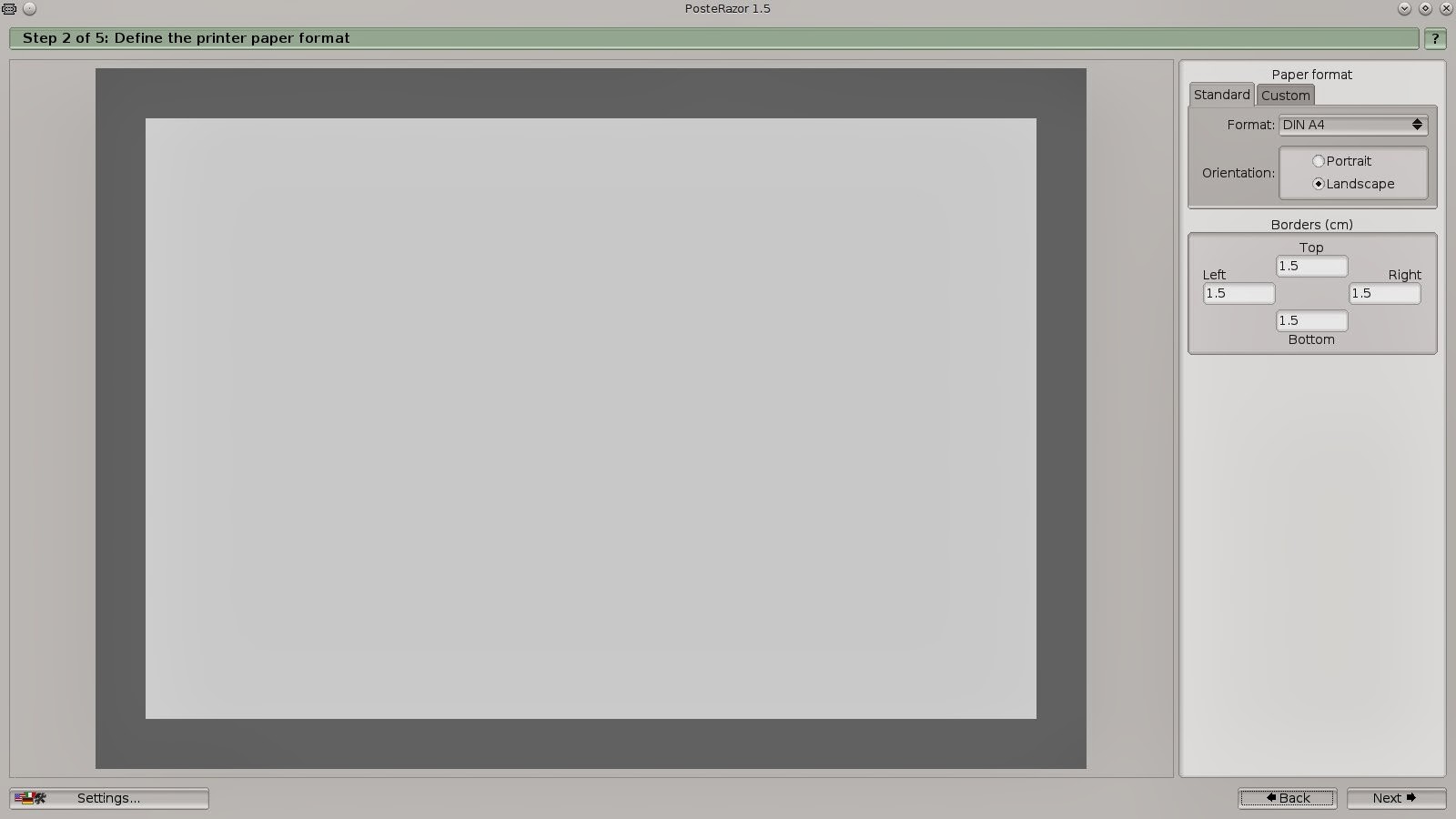
 During step 2 I kept everything on the default settings. This more or less controls your borders. You can play around with this a bit on your own. I just left it at default and cut the borders on one page so they overlapped a bit and had some room to tape. I found this easier for me. Again click next.

In step 2 I left everything set at the defaults.
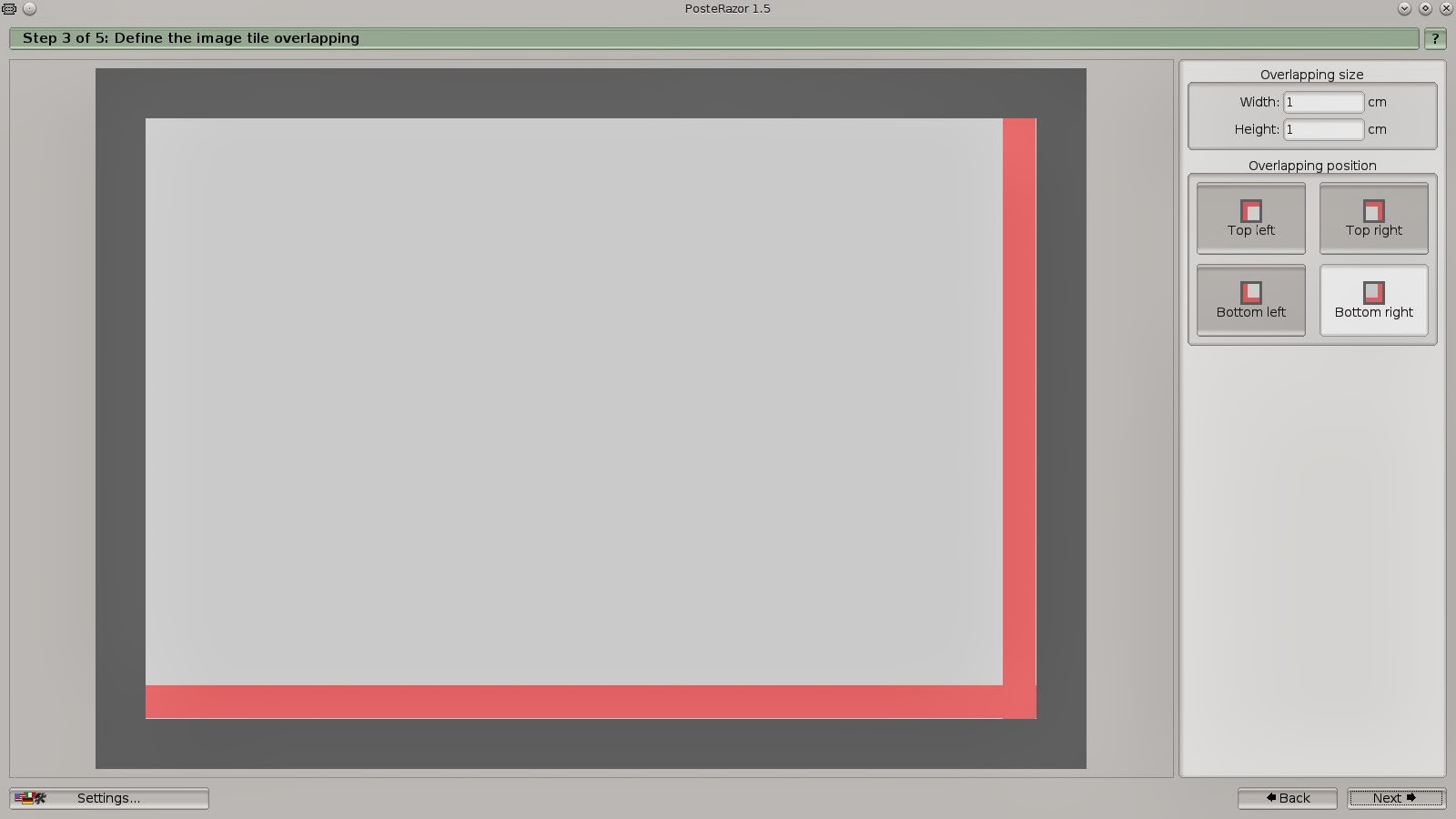
Step 3 lets you adjust the overlapping of the pages. Again I left this on the default setting and clicked next.

Step 3 controls the overlapping, again I left this set at the defaults.

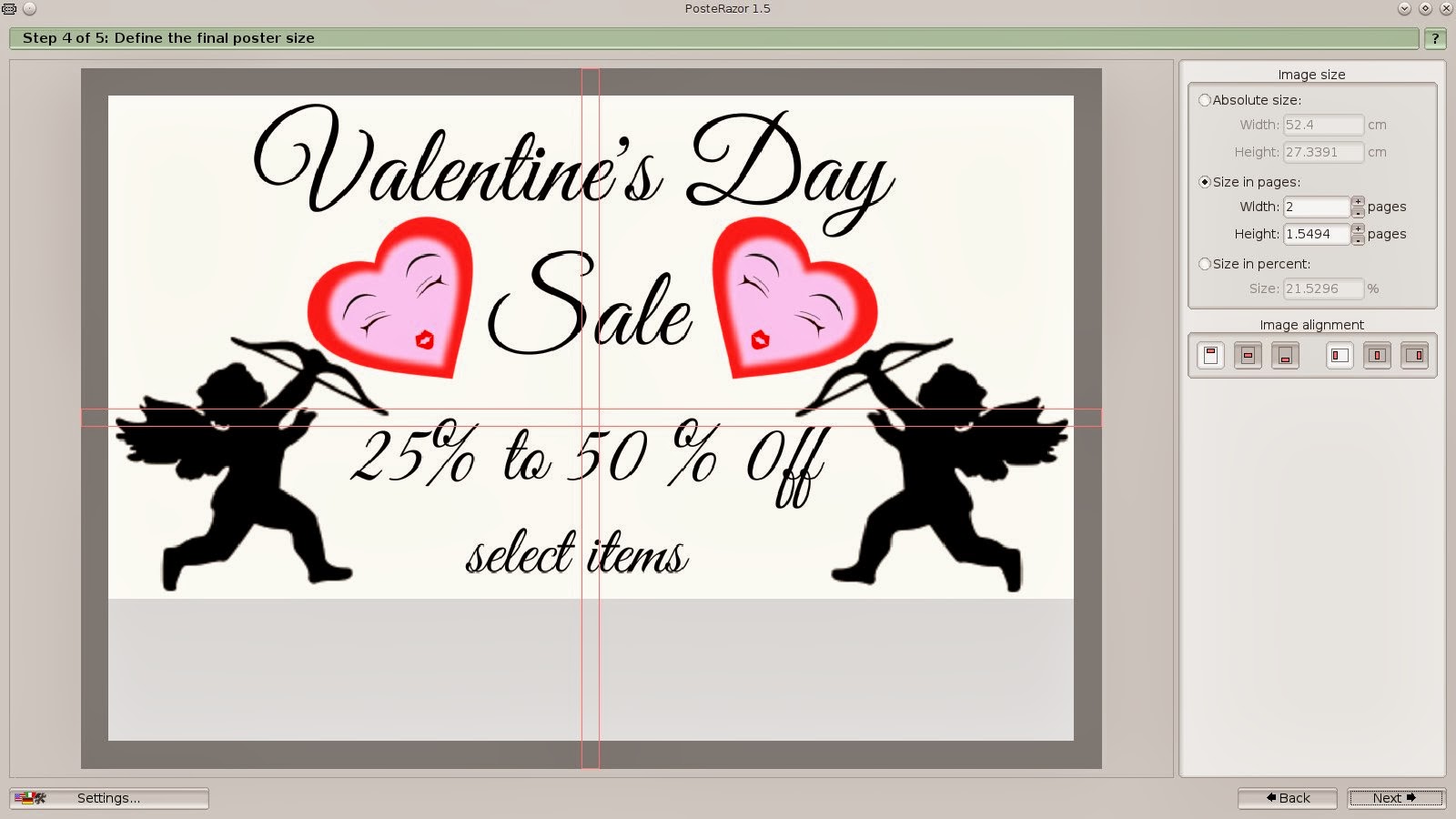
Step 4 shows you how the pages will print, and how many pages you will be using. You can adjust this to make your poster larger or smaller. I wanted mine to be about 4 pages, landscaped, to place in the storefront windor. So I created it at 2 pages width, and 1.5 page height. Click next.

Step 4 shows you how many pages you'll be printing. This can be adjusted to add more or less pages depending on the size of the poster desired.
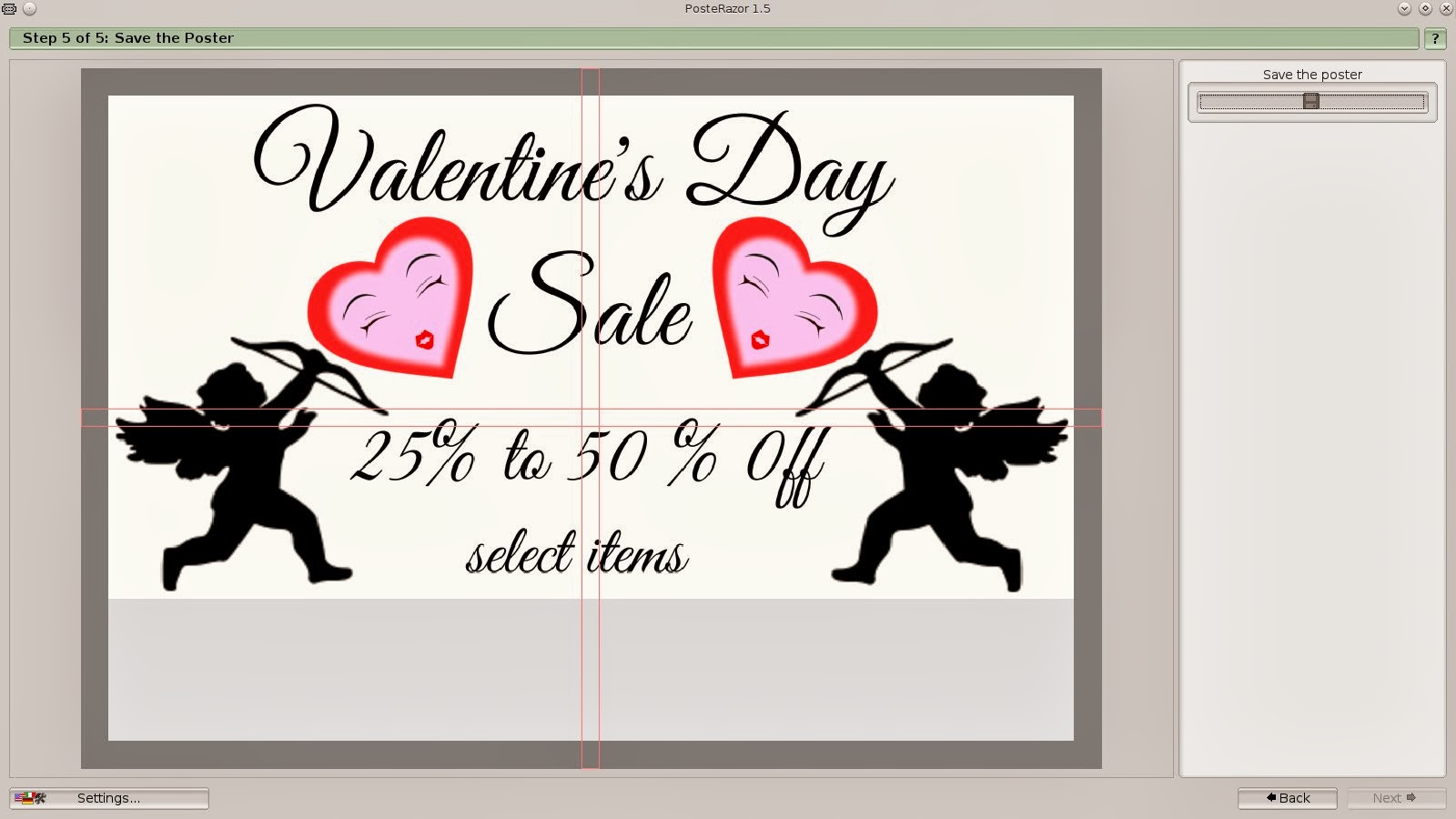
 Step 5 click on the floppy disk icon under where it says save the poster. Choose the directory you want to save it in, name the file and give it a pdf extension. Press the OK button and your pretty much done.

Click on the floppy disk icon, name the file and give it a pdf extension.
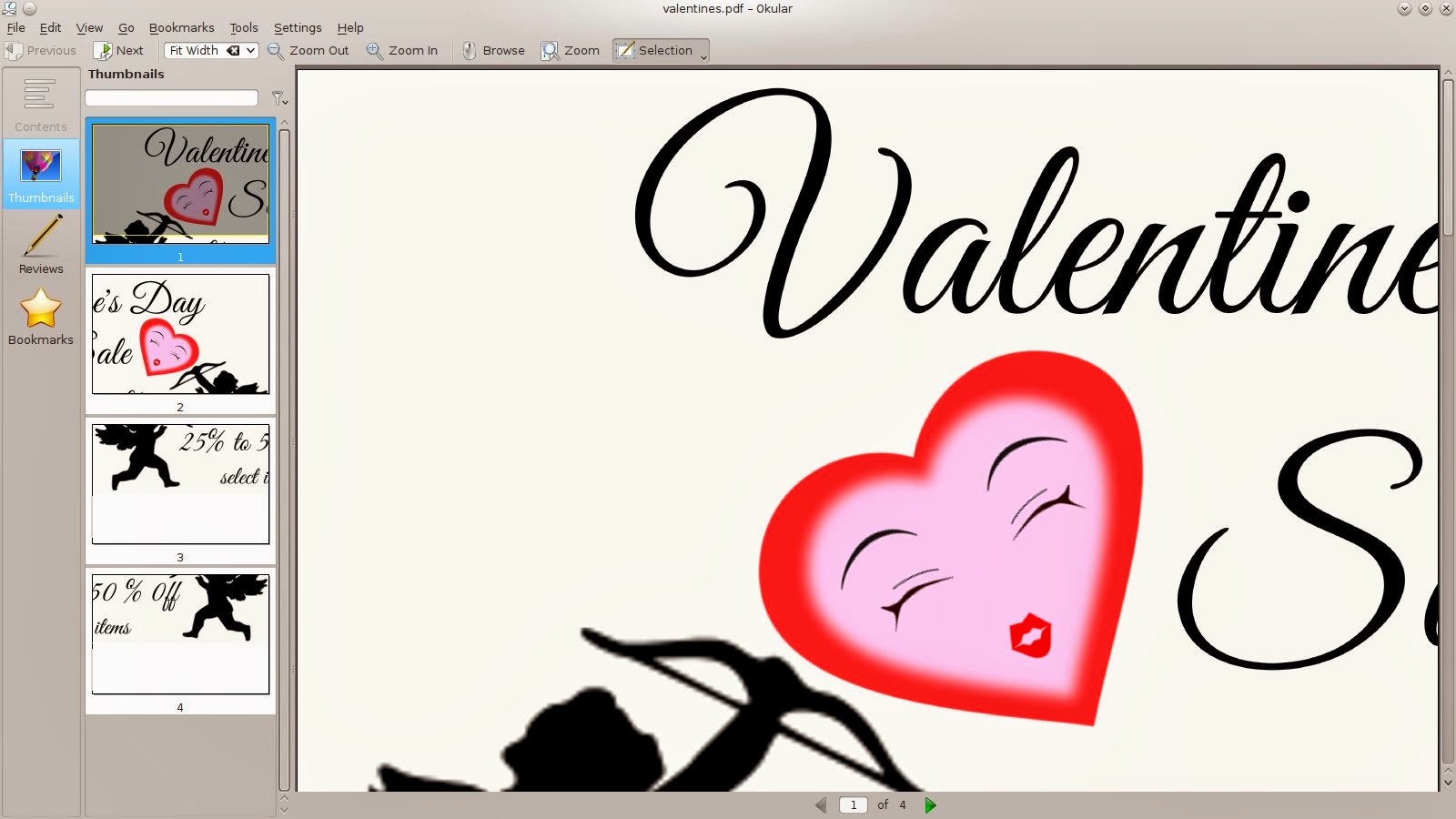
All you have to do now is open up the pdf file, click print, and your printer will do the rest. Trim the edges, I trim the edges on one side and tape it on the back. I think it looks neater and hides the tape for the most part.
Open the pdf file in your favorite pdf viewer. I used Okular. The image will be broken up in page sections. Click print, and tape your pages together, you have acheived poster !
Whatever you decide to use the Posterazor for, this is a great piece of software, that's fun and easy to use. Makes great posters in 6 easy steps ! This is perfect for creating promo posters for the store window at work ! If you've used this program leave a comment and tell me what you've used it for.